AI Tools That Write Client Emails and Follow-Ups
AI tools that write client emails can draft a proposal reply, a follow-up, or a payment reminder in seconds from a few lines of your own notes. They are best for the routine messages freelancers send every week — the ones that are important but take longer to write than they should. They do not replace your judgement, and they should not send anything without you reading it first, but they can cut the time you spend staring at a blank reply box.
AI Tools That Write Client Emails: How They Work
These tools work from a short prompt you write — who the email is for, what it needs to say, and the tone you want. You type something like “follow up with a client about an unpaid invoice from last week, polite but firm,” and the tool produces a full draft. You then edit it, add the details only you know, and send it yourself.
Most of the tools freelancers use fall into three groups:
- Built-in AI in your email app. Several email services now include a draft-writing feature that suggests a reply based on the message you received. It is the simplest option because there is nothing new to install.
- AI writing assistants. General writing tools with email templates can draft proposals, introductions, and follow-ups. You paste in your notes and pick a template, and the tool shapes it into a finished message.
- Browser helpers and extensions. Small tools that sit next to your inbox and draft replies in place. They are useful if you answer a lot of similar messages, because they remember your usual phrasing.
None of them needs a technical setup. If you can write a two-sentence prompt, you can use one.
The Emails Worth Automating First
Start with the messages you send most often and dread most. Those are the ones where a draft saves real time:
- First replies to new enquiries. A short reply that confirms you received the message, asks the two or three questions you always ask, and says when you will follow up.
- Follow-ups after a quote. A polite nudge a few days after you send a price, reminding the client the quote is there and offering to answer questions.
- Payment reminders. A calm, clear reminder about an overdue invoice — firm on the facts, friendly in tone. This is one of the best uses, because it is the email freelancers put off longest.
- Project updates. A short status email telling a client what is done, what is next, and when to expect it.
- Thank-you notes after a job ends. A brief message that closes the job well and mentions the next step, which keeps the door open for repeat work.
For each of these, keep a template you like. Once you have a draft that works, save it and reuse it with small changes instead of starting from scratch every time.
Where to Keep the Human Touch
AI drafts are a starting point, not a finished message. The emails where your own voice matters most are the ones you should write — or at least heavily edit — yourself:
- Bad news. A delay, a price increase, or a missed deadline deserves your own words. A client can tell when an apology was generated, and it makes the problem worse.
- Negotiation. If you are discussing rates or scope, the exact wording is the negotiation. A draft can give you a structure, but the numbers and the tone are yours.
- Sensitive clients. A client who is unhappy, confused, or new to working with freelancers needs a reply that shows you read their message carefully. A generic draft does the opposite.
- Anything with a promise in it. If the email commits you to a date, a price, or a result, read every line before you send it. An AI tool does not know what you can actually deliver.
A good rule: if getting the email wrong would cost you the client, do not let a tool send it untouched. Draft it, edit it, then send it.
A Simple Setup You Can Copy
You do not need a complicated system. Here is a setup that works for most freelancers in an afternoon:
- Pick one tool you already have. Check whether your email app or a writing tool you already use has a drafting feature. Start there before paying for anything new.
- Write five prompts for your five most common emails. One line each: who the email is for, what it must say, and the tone. Save them in a note you can copy from.
- Test on a low-stakes email first. Draft a thank-you note or a simple status update, edit it, and send it. See how much time it saved and how natural it reads.
- Build a small template library. Every time a draft works well, save the final version. After a month you will have templates for most situations, and the tool becomes a way to fill them in rather than start over.
- Set a two-minute review rule. Never send an AI draft without reading it once, slowly, and checking the names, dates, prices, and promises. Two minutes of review prevents most mistakes.
The goal is not to send more emails — it is to spend less time on the emails you already send, so the hours go back to the work clients pay for.
Frequently Asked Questions
Can AI tools send client emails on their own?
Some can, but you should not let them. Always read and approve a draft before it goes to a client. An AI tool does not know your deadlines, your prices, or what you promised in your last call — only you do.
Will clients be able to tell an email was written by AI?
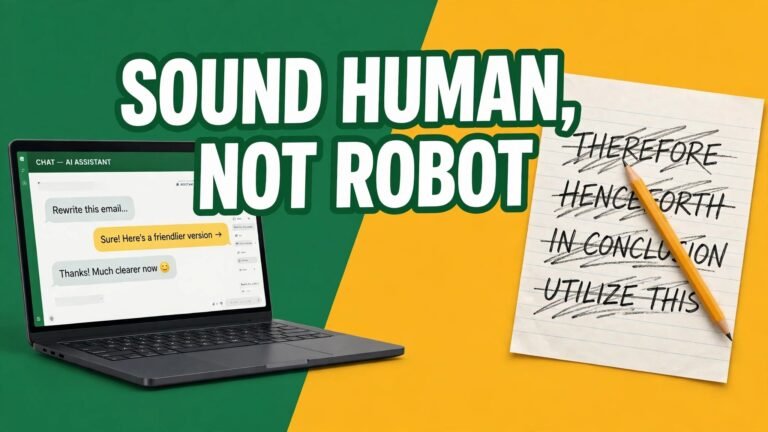
They might, if you send a draft untouched. Generic phrasing and overly formal language are easy to spot. Edit the draft into your own voice, add one specific detail from the project, and it will read like you.
Are AI email tools free?
Many have a free tier that covers a small number of drafts each month, and several email apps include basic drafting at no extra cost. Paid plans usually start at a modest monthly price and mainly add more drafts or extra features. Start free and pay only if you use it every week.
What should I never put in an AI email prompt?
Do not paste a client’s private information, passwords, or sensitive financial details into any AI tool. Keep prompts to the facts the email needs — names, dates, amounts, and the point of the message — and leave the rest out.
IncomeXP publishes practical, hype-free guides to earning more — no promises, just information you can use.